Tool: Animations
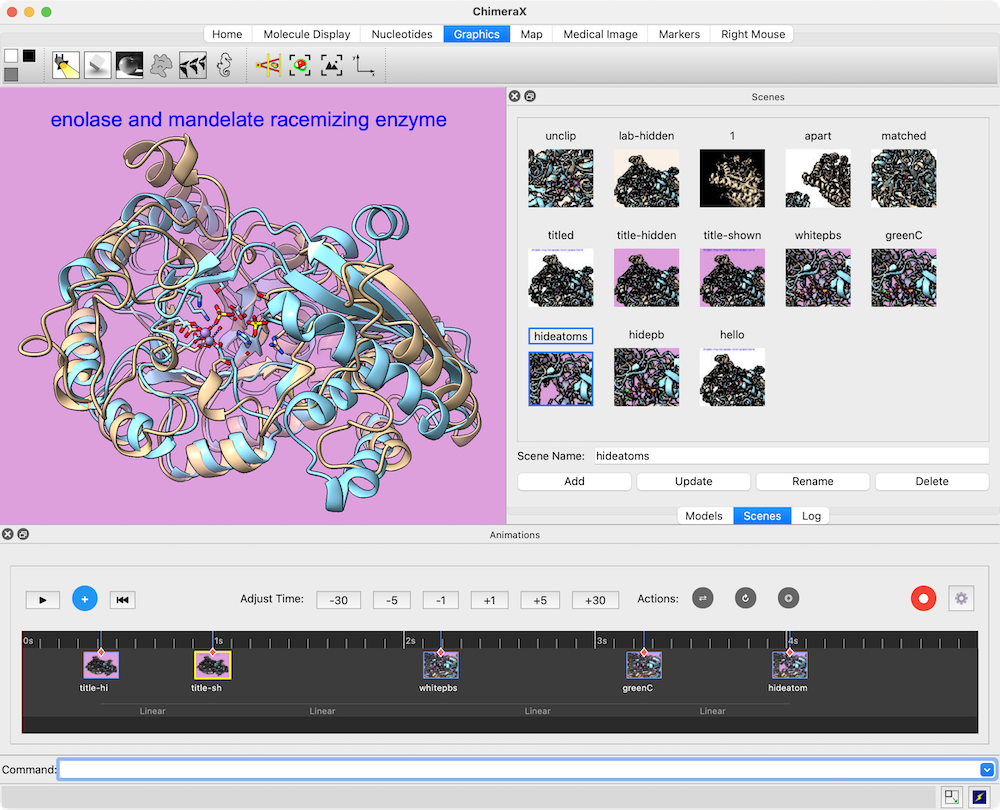
Animations is a timeline-based graphical interface for creating
movies from a series of scenes and other
actions. The scene mode of the GUI is
documented in this page. See also:
making images,
making movies
Animations can be started from the Depiction section of the
Tools menu and manipulated like other panels
(more...).
Placing Scenes and Actions on the Timeline
Playback and Scrubber
Transitions between Scenes
Trajectory Playback
Recording a Movie
Settings (Preferences)
[back to top: Animations]
Placing Scenes and Actions on the Timeline
An existing scene can be placed on the timeline by dragging and droppping
a thumbnail from the Scenes tool.
A new scene corresponding to the current ChimeraX contents can be created
and added to the timeline by clicking the plus-sign icon
(white on a blue circle).
The scenes can be dragged horizontally to different positions on the timeline.
Adjust Time: Clicking the negative and positive numbers allows
adjusting the length of the timeline by subtracting and adding seconds.
The timeline length in seconds assumes a playback rate of 60 fps.
Actions: the three icons on gray circles represent (from left to right)
represent rocking, rolling, and precession. Each type of action can be placed
on the timeline any number of times by clicking and dragging the respective
icon, and its start and stop times adjusted by dragging the left and right
ends of the action bar horizontally on the timeline.
The context menu for an action bar
on the timeline includes corresponding options:
- for Rock:
- Delete 'Rock' Segment
- Axis (X/Y/Z)
– axis of rocking in the
screen coordinate system
- Angle (15/30/45/60/90/120/180/360°)
– amplitude of rocking motion, maximum angle from starting point
in each direction (total angle swept out is twice this value)
- Count (1/2/3/4/5)
– number of cycles, each returning to the starting point
- for Roll:
- Delete 'Roll' Segment
- Axis (X/Y/Z)
– axis of rolling in the
screen coordinate system
- Angle (15/30/45/60/90/120/180/360°)
– rotation per count
- Count (1/2/3/4/5)
– total rotation = angle × count
- for Precess:
- Delete 'Precess' Segment
- Axis (X/Y/Z)
– axis of precession in the
screen coordinate system
- Count (1/2/3/4/5)
– number of cycles, each returning to the starting point
- Precession Tilt (5/10/15/20/30/45°)
A scene or action can be removed from the timeline by clicking its
representation on the timeline and pressing the delete key.
A scene can also be deleted by using the
thumbnail context menu.
[back to top: Animations]
Playback and Scrubber
The scrubber is the red vertical line indicating position
on the timeline. Clicking the timeline places the scrubber, and dragging the
the scrubber horizontally shows the corresponding segment of the animation
as per the speed and direction of dragging.
Clicking the play button ▶ plays
the animation from the current scrubber position to the end,
at the speed indicated by the timeline length in seconds.
During playback, a pause button ⏸ is shown and can be clicked
to halt playback in progress. Clicking the rewind button ⏮
places the scrubber at the beginning of the timeline.
[back to top: Animations]
Transitions between Scenes
The context menu for a scene
thumbnail on the timeline includes:
- Delete [name-of-scene] from Timeline
- Restore Camera
– restore the view of that scene
(e.g., after an accidental rotation)
- Transition Type – how to spread out any gradual changes
over the interval between the scene and the one before it.
Transition type does not affect which aspects of a scene change gradually,
only how the rate of change may vary. Transition types are indicated
on the timeline with line shapes and labels below the scene thumbnails.
- Linear – constant rate of change
- Ease In (Sine)
- Ease Out (Sine)
- Ease In-Out (Sine)
- Ease In (Quad)
- Ease Out (Quad)
- Ease In-Out (Quad)
- Ease In (Cubic)
- Ease Out (Cubic)
- Ease In-Out (Cubic)
[back to top: Animations]
Trajectory Playback
Playback of part or all of a trajectory
(such as from morphing)
can be included in the animation by:
- creating a scene in which the trajectory model is showing the first
frame in the desired playback
- creating a scene in which the trajectory model is showing the last
frame in the desired playback
- placing both of those scenes on the animation timeline;
the trajectory frame number will be interpolated between them.
Playback can be in either direction depending on the order in
which the two scenes are placed in the timeline.
[back to top: Animations]
Recording a Movie
Clicking the ◉ button to record a movie
opens a dialog for specifying the movie resolution
and output file type, filename, and location.
Clicking Save initiates recording with the indicated settings,
and the recording button above the timeline changes to orange
◉ to indicate a recording in progress.
Clicking the orange button halts the recording and assembles any
already-recorded image frames into the specified output file.
In general, the scrubber will advance more slowly during recording
than during playback because rendering the images takes time.
[back to top: Animations]
Settings (Preferences)
Clicking the gear button opens the Animations Preferences,
with settings:
- Animation tool mode – whether to show the
Scene Mode GUI for Animations (default), which is
documented in this page, or the more complex Keyframe Mode
(not yet documented)
- Default recording resolution
– what resolution (image dimensions) to show initially in the
movie output dialog when it is invoked
by clicking the ◉ button to record;
the resolution can still be changed in that dialog, however,
before recording is initiated
- Default recording resolution
– framerate at which to encode the movie
(initial default 60 FPS); 120 would give a movie half as long as
indicated by the second markings on the timeline, whereas values <60
would give movies longer than indicated by the markings on the timeline
Buttons at the bottom of the dialog:
- Save – save the current settings
- Reset – replace the current settings with the
initial (“factory”) defaults
- Restore – restore values that were saved previously
- Help – show documentation
UCSF Resource for Biocomputing, Visualization, and Informatics /
May 2026